
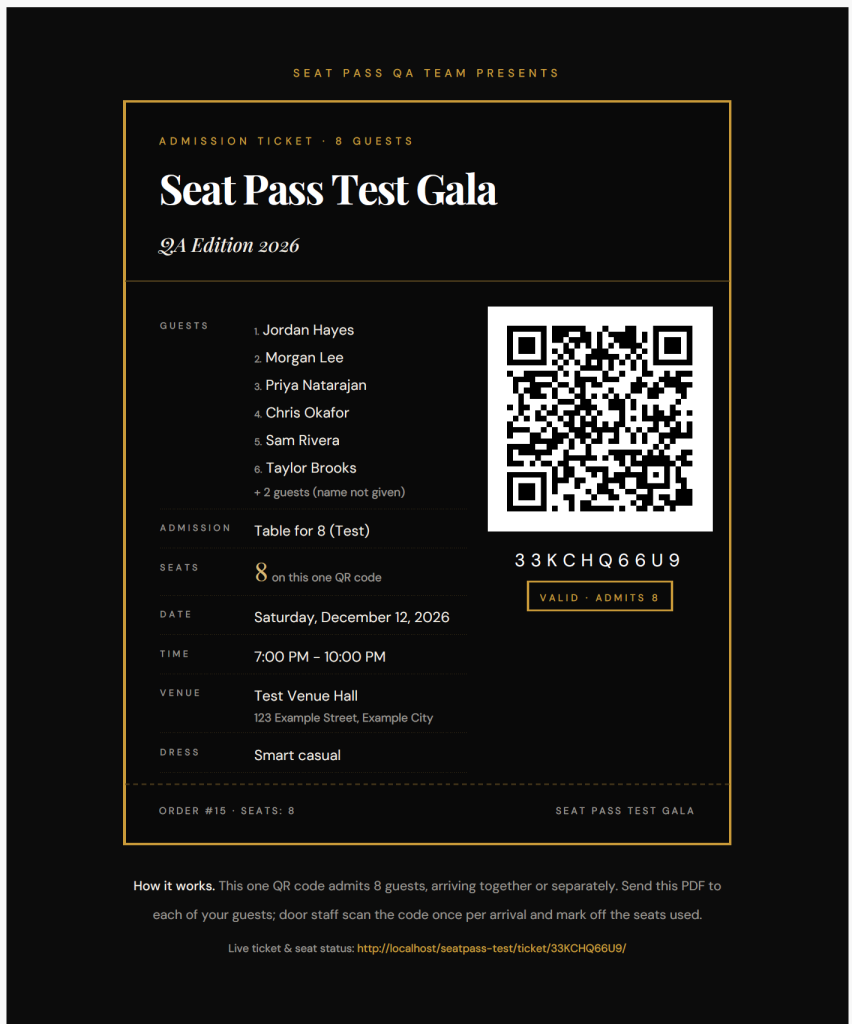
What you get
A seat counter admits groups together or separately. Two GA tickets and a table of eight become one code for ten guests.
Staff log in on any phone, scan or type the code, check guests in, undo mistakes and see the log.
Generated on your server with dompdf and attached to order emails. Buyers can forward them to guests.
One name field per seat at checkout, printed on the ticket and editable later by customer or organizer.
Cancelled or refunded orders void the ticket; partial refunds and quantity edits re-sync the seat count.
Collect company name, logo, website and contact at checkout and show them on the order.
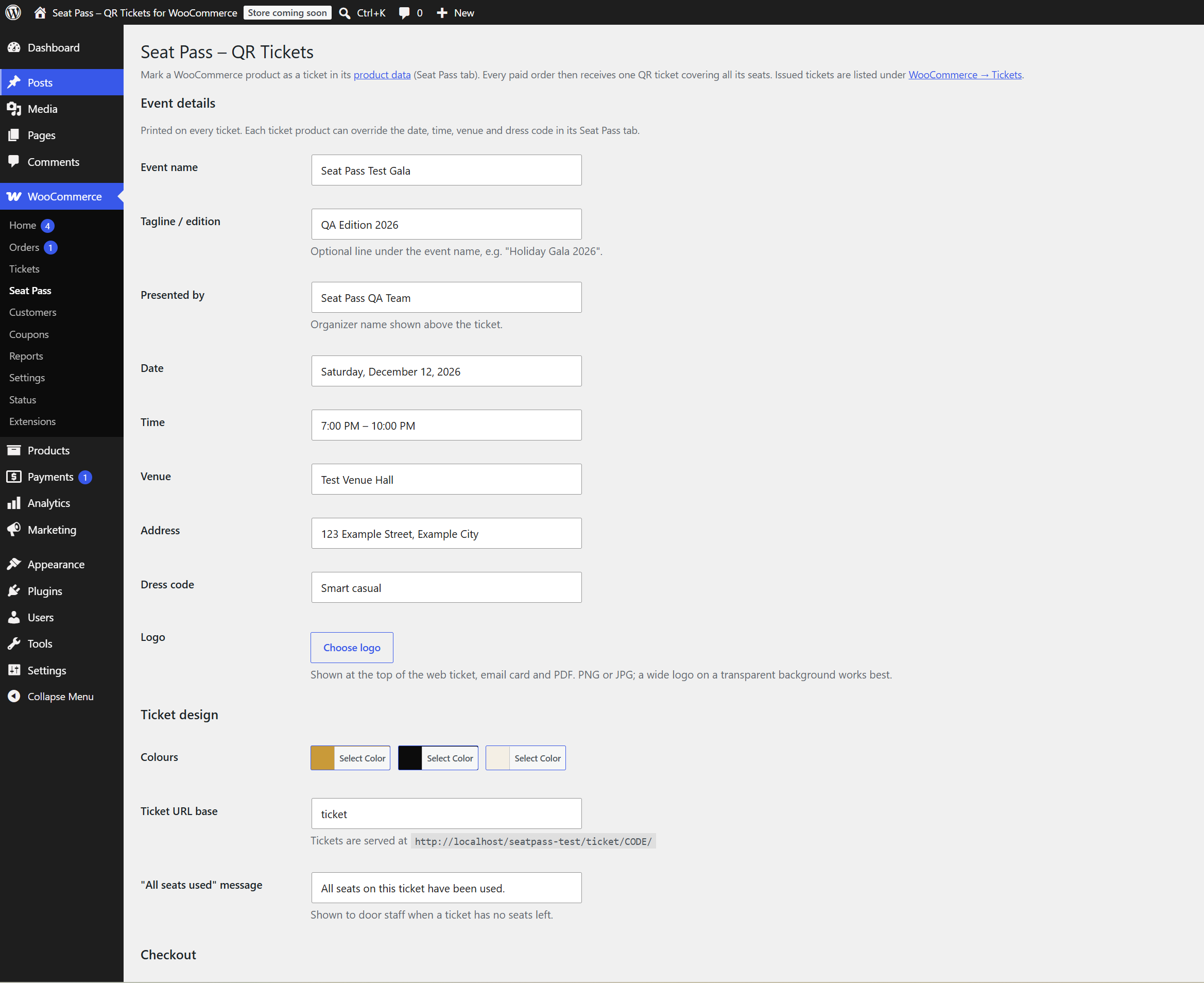
Global defaults with per-product overrides for date, time, venue and dress code.
Your logo, accent, background and text colours apply to the web ticket, email card and PDF.
Works with WooCommerce High-Performance Order Storage and both classic and block checkout.
No data leaves your site. Optional clean-up on uninstall.
About Seat Pass – QR Tickets for WooCommerce
Seat Pass turns any WooCommerce product into an event ticket. When an order is paid, the buyer receives one QR-code ticket that covers every seat in the order: two general admission tickets and a table for eight become a single code admitting ten guests. Door staff scan the code with any phone camera, see how many seats are left and check guests in one or several at a time.
Highlights
- One QR code per order with a seat counter. Guests can arrive together or separately.
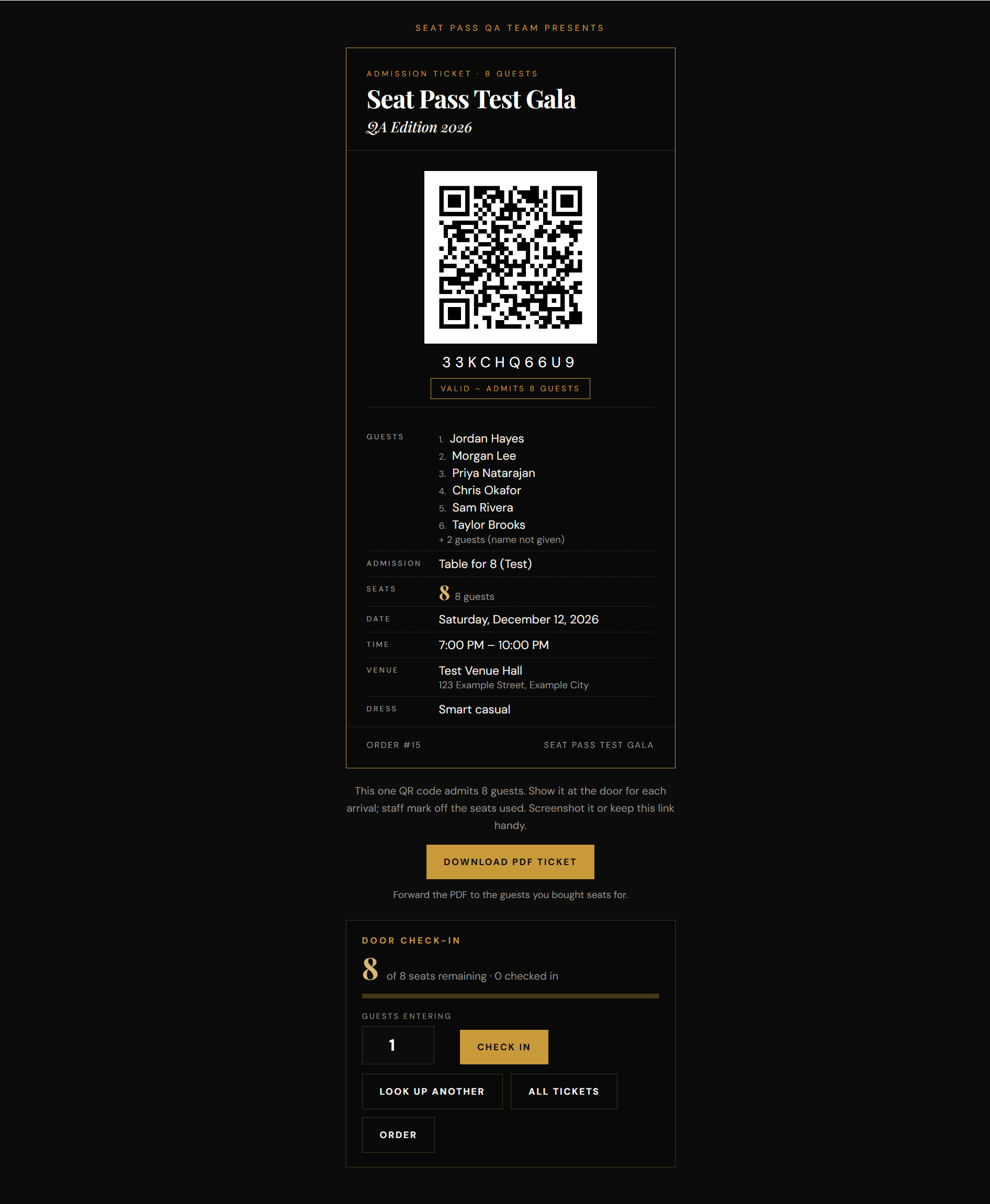
- Door check-in page for logged-in staff: check in, undo, see the log. Works on any phone, no app needed.
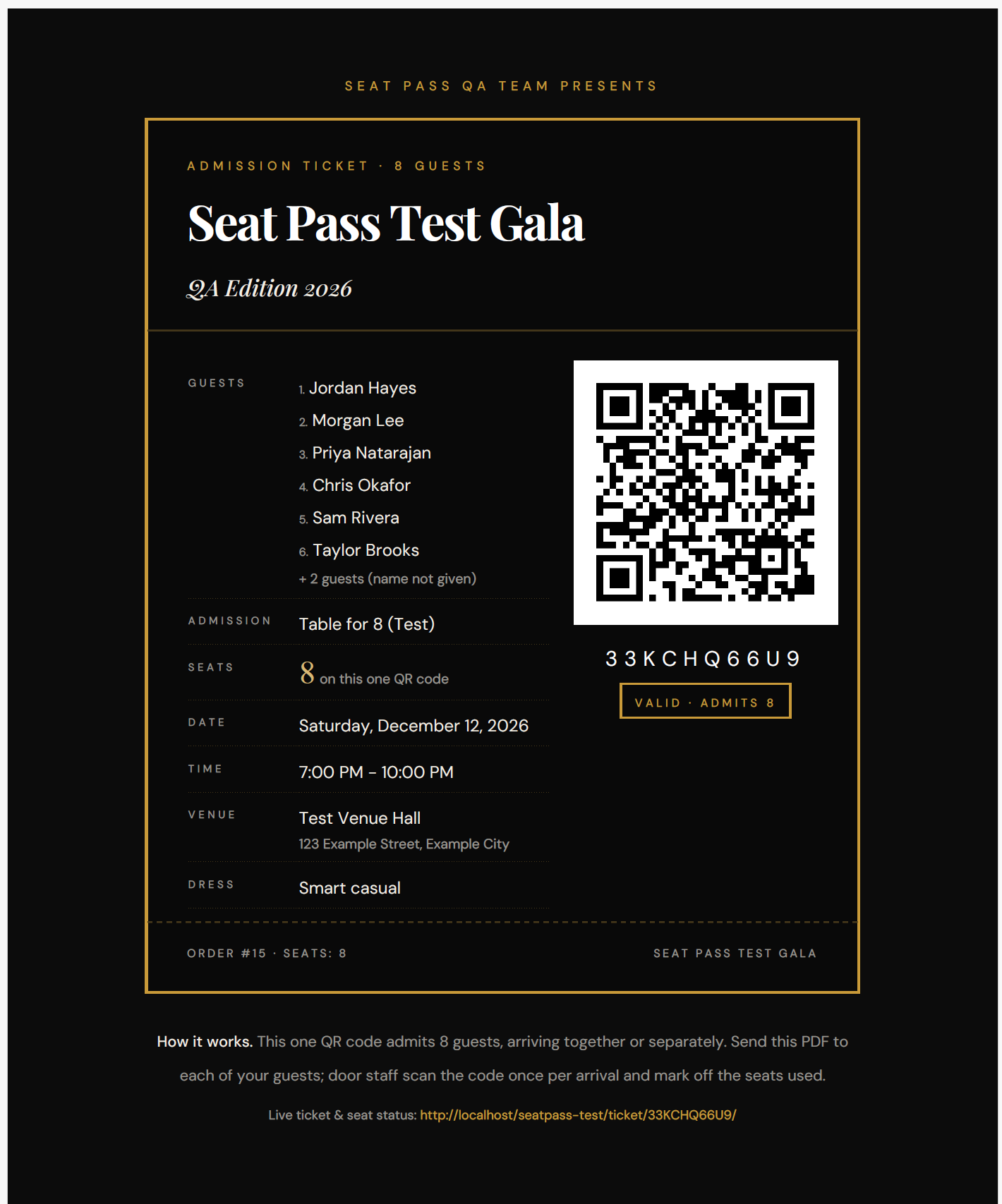
- PDF tickets generated on the server (dompdf) and attached to the order emails. Buyers can forward the PDF to their guests.
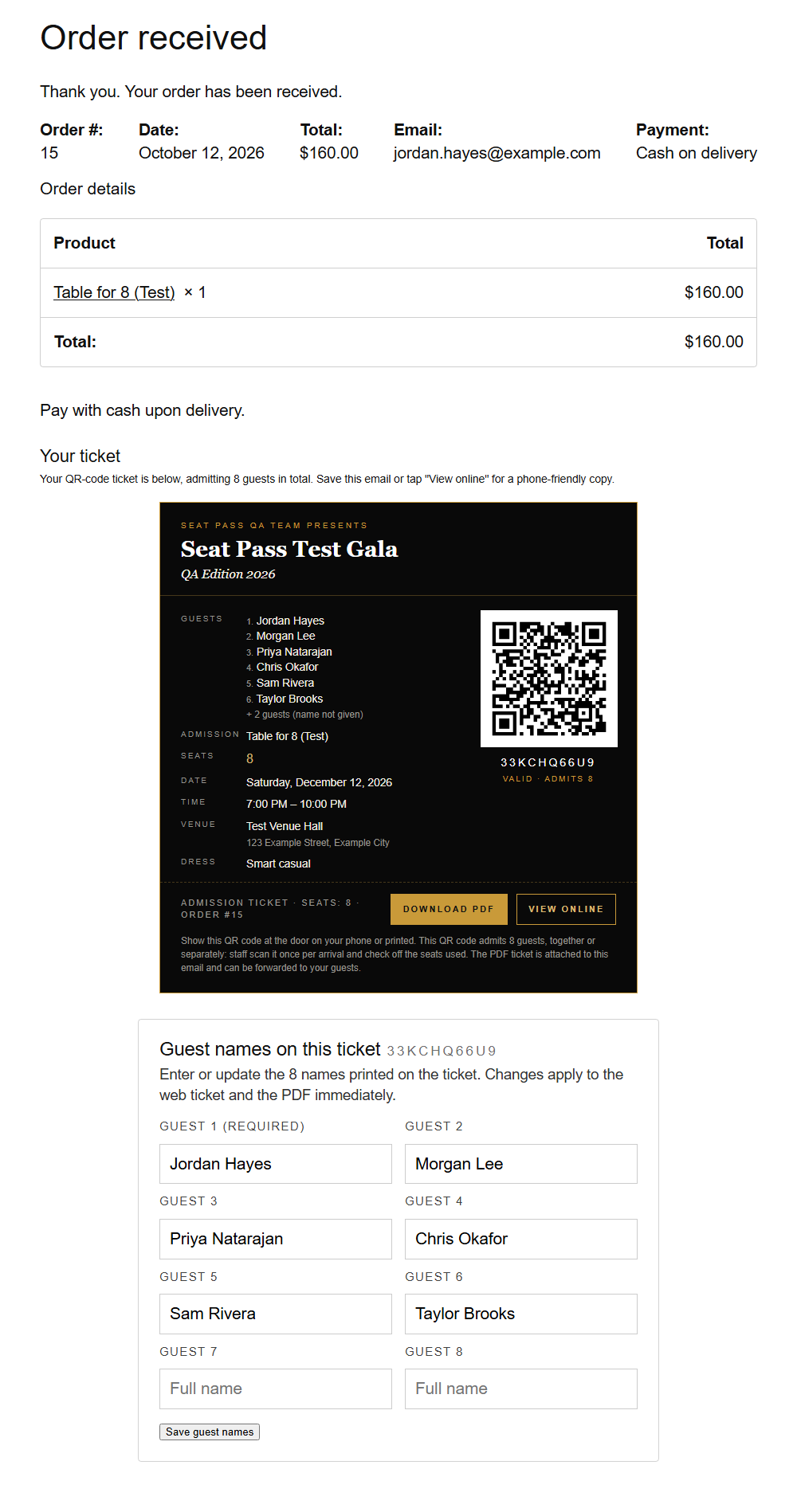
- Ticket card in emails, on the thank-you page and in My Account, with a “View online” link to a phone-friendly ticket page.
- Guest names: one name field per seat at checkout, printed on the ticket, editable later by the customer or the organizer.
- Refund-aware: cancelled or refunded orders void the ticket; partial refunds and quantity edits re-sync the seat count.
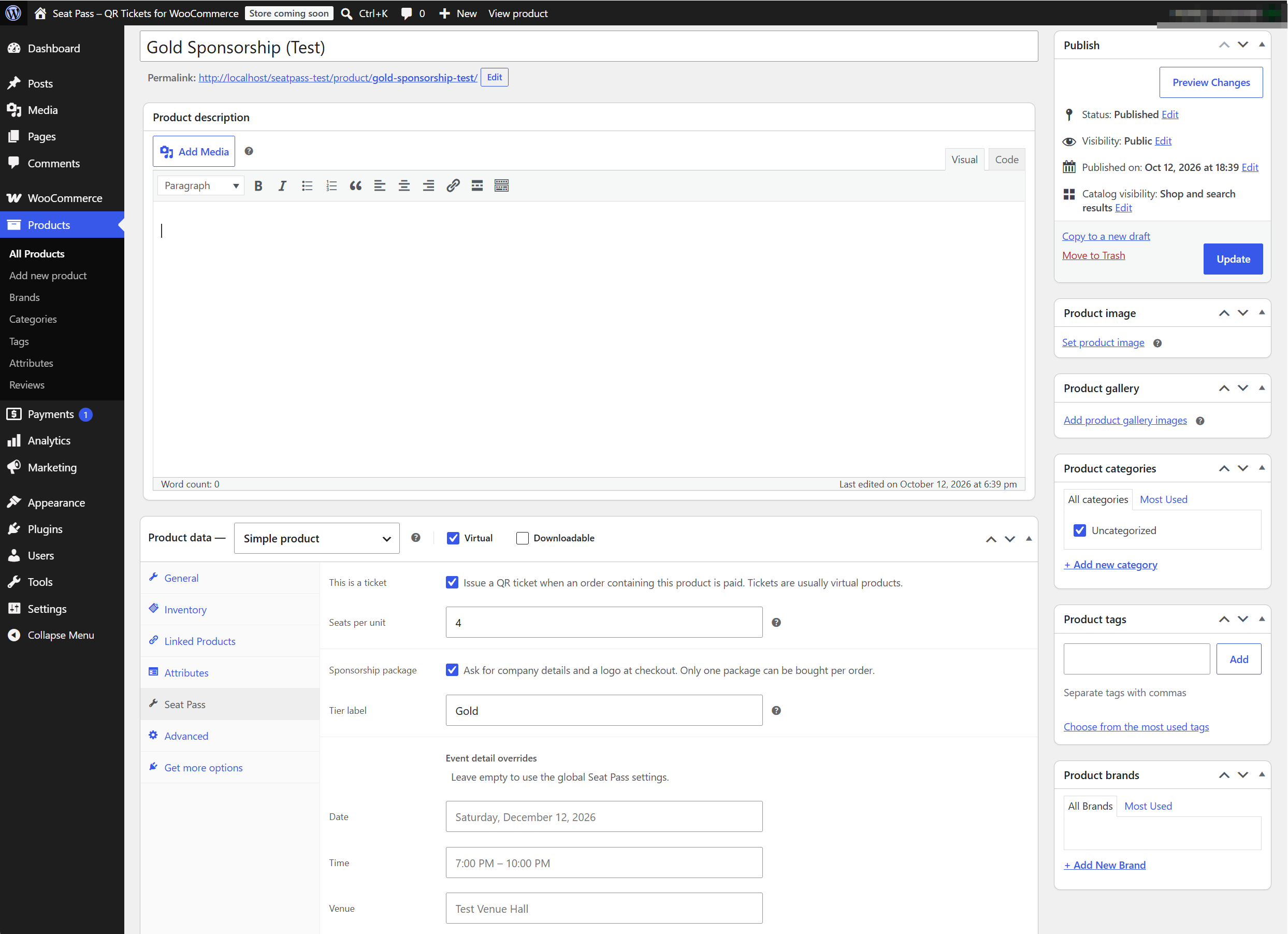
- Sponsorship packages (optional): mark a product as a sponsorship to collect company name, logo, website and contact at checkout. Details appear on the order, in the admin email subject and in the orders list.
- Event details set once in settings and overridable per product (date, time, venue, dress code), so a gala and its after-party can share one site.
- Checkout conveniences (all optional): go straight to checkout after “Add to cart”, hide billing address fields for ticket-only carts, custom “Return to shop” link.
- Brandable: your logo, accent, background and text colours apply to the web ticket, email card and PDF.
- Works with WooCommerce High-Performance Order Storage.
How it works
- Install and activate. Go to WooCommerce → Seat Pass and fill in your event details.
- Edit a product, open the Seat Pass tab, tick This is a ticket and set Seats per unit.
- Sell. Once an order is Processing or Completed, the ticket is issued, emailed and listed under WooCommerce → Tickets.
- At the door, staff log in and open the ticket URL (or scan the QR code) to check guests in. The lookup page at
/ticket/also accepts a typed code.
Up and running in minutes
- 01
Install & configure
Activate the plugin, then set your event details, colours and checkout options under WooCommerce → Seat Pass.
- 02
Mark products as tickets
Open any product, tick "This is a ticket" on the Seat Pass tab and set seats per unit.
- 03
Sell
Once an order is Processing or Completed the ticket is issued, emailed and listed under WooCommerce → Tickets.
- 04
Check in at the door
Staff scan the QR code or type it at /ticket/ and check guests in one by one or all at once.
See it in action
Frequently asked questions
Does every guest get their own QR code?
No. One order gets one QR code that admits all the seats in the order. The buyer forwards the PDF or link to their guests; door staff check off each arrival.
Which orders get a ticket?
Orders that contain at least one product marked as a ticket, once their status is Processing or Completed. Pending and On-hold orders show "your ticket will be emailed once payment is confirmed".
Can I use different dates or venues for different products?
Yes. The global settings are the default; each product can override the date, time, venue, address and dress code in its Seat Pass tab. If one order contains products with different details, the ticket lists each item with its own date and time.
Who can check guests in?
Any logged-in user whose role is selected under Door check-in in the settings (administrators and shop managers by default). They open the ticket page from the QR code or type the code at /ticket/.
Does it work with the block (Cart/Checkout) editor?
Tickets, emails, PDFs and check-in work with any checkout. The guest-name and sponsor fields are rendered on the classic (shortcode) checkout.
Where are the files stored?
QR codes and PDFs live in wp-content/uploads/seat-pass/. Enable Delete data on uninstall in the settings if you want them removed with the plugin.
Where is the full documentation?
In docs/DOCUMENTATION.md inside the plugin folder.
Release history
1.0.0
- First public release.
Need a custom plugin or theme?
We build bespoke WordPress products for agencies and businesses, from quick add-ons to full platforms.
Talk to usFree consultation·No commitment required·Response within 24 hours